Ciansoft TwainControlX User Manual (Version 4.1)
Note: This User Manual is also available in pdf format. The pdf version is included in download files for both the trial and full versions of TwainControlX.
Introduction
Ciansoft TwainControlX is an ActiveX control that enables applications to acquire images from TWAIN compliant devices such as scanners and digital cameras. This document contains comprehensive instructions on installing and using TwainControlX.
For further information, visit our website: www.ciansoft.com or contact us by email, we will be pleased to answer your questions: info@ciansoft.com.
How to Use This Manual
The first section in this manual explains how to start using TwainControlX. This describes installation of the control, the basic approach to acquiring images, and information about the trial version. We especially recommend reading 1.2 Steps to Follow to Acquire Images first in order to understand the general principles of using this control.
After that, the remainder of the manual describes all the available functions. For each function, details as shown below are available:
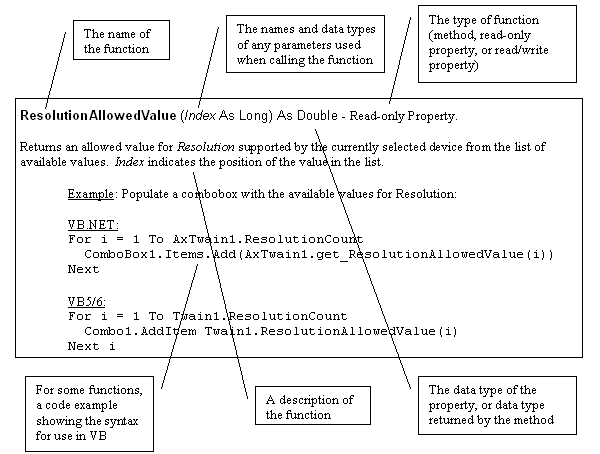
A complete Alphabetical List of Functions can be found at the end of this document.
TwainControlX is commonly used in Microsoft Visual Basic applications, although many other development environments supporting the use of ActiveX controls can equally well be used. Throughout the document example code is given to show the syntax for VB.NET and VB 5/6.
Table of Contents
1.1. Compatible Operating Systems
1.2. Installation
1.3. Steps to Follow to Acquire Images
1.4. The Trial Version
1.5. 32-bit and 64-bit Versions
2.1. Overview
2.2. TWAIN Versions and the Source Manager
4.1. General Configuration Functions
4.2. Essential Functions
4.3. Image Quality Functions
4.4. Device Processing Functions
7.1. Configuration
7.2. Exporting Multiple Images
8.1. Blank Page Detection
8.2. Magnetic Ink Character Recognition (MICR)
8.3. PDF File Properties
8.4. Other Miscellaneous Functions
12. Alphabetical List of Functions
1. Getting Started
1.1. Compatible Operating Systems
TwainControlX can be used on the following operating systems:
- Windows XP
- Windows Vista
- Windows 7
- Windows 8 & 8.1
- Windows 10
- Windows Server versions from 2003 to 2019
1.2. Installation
TwainControlX is supplied as an executable installer. For the trial version, the name of the installer file is TwainControlXTrial.exe and purchased versions have various similar names indicating the type of licence. These installation instructions will relate to the trial version as this is the first version most people will use. The installation procedure is essentially the same for purchased versions.
All installers are digitally signed by IC Technologies Ltd and should be obtained only from our website.
After running the installer, files are copied to the Program Files (x86) folder, or Program Files on a 32-bit operating system, under the path Ciansoft\TwainControlXTrial. There are two versions of the ActiveX file TwainControlXTrial.ocx, a 32-bit version and a 64-bit version. These are installed in subfolders called x86 and x64 respectively. On a 64-bit operating system both versions are installed, but on a 32-bit operating system only the 32-bit version is installed. Demo files are copied to the users Documents folder.
In addition to the ocx files, the following files are also installed:
| TwainControlXTrial.lic: | The licence file needed when using the control in a development environment. |
| TwainControlX User Manual.pdf: | This manual. |
| twaindsm.dll: | The TWAIN Source Manager (shared library). There are two versions of this file, for 32-bit and 64-bit applications. The 64-bit version is installed in the appropriate system directory. The 32-bit version is copied to a directory called x86DSM under the installation path for manual installation if required. |
| twaincontrolxtrial.lpk: | Licence package file for use with a web application. |
| licence_trial.txt: | A copy of the licence agreement |
| Under Documents\Ciansoft\TwainControlXTrial\Demos: | Various example applications, accessible from the Windows Start Menu. |
For purchased versions of TwainControlX, the installation also includes a file TwainControlX.cab. this is a copy of the OCX file, compressed into a CAB file and digitally signed. It is for use in web applications.
The OCX file, TwainControlXTrial.ocx, must be registered on the computer running the application. This should be done during the installation, but if it is not, the command line utility regsvr32.exe can be used. This utility must be run from an elevated command prompt, i.e., a command prompt window that has been started with Administrator privileges. On 64-bit systems there are two versions of regsvr32.exe and these are located in the respective system folders.
When deploying an application that uses TwainControlX, the OCX file will also need to be registered on the target machine. Note that the licence file, TwainControlX.lic, is needed to use this control in a design environment and this file must not be distributed with an application, as is confirmed in your licence agreement.
To use this control in a VB.NET project, the control must first be added to the Toolbox. Click on the Tools menu and select ‘Choose Toolbox Items…’ or right-mouse click over the Toolbox and select ‘Choose Items…’. Then from the list of COM Components, select ‘TwainControlX (Trial)’.
In VB5 or VB6, select Project and Components from the pull down menu. This gives a list of available controls. Select ‘TwainControlXTrial Library’ and click Apply. This adds the control to the component palette. The class name is ‘Twain’ and this will appear in the Object Browser where the properties and methods are listed.
For other design environments, consult the documentation for importing ActiveX controls.
As an ActiveX control, TwainControlX can be used in a range of Windows based environments and languages. There will be slight differences in syntax especially with the use of parentheses/brackets surrounding method parameters.
1.3. Steps to Follow to Acquire Images
There are four steps involved in acquiring an image and each step is covered by a section of this manual:
- Selecting the TWAIN device to be used (Section 3).
- Configuring the settings of the device, e.g. resolution (Section 4).
- Acquiring the image (Section 5).
- Exporting the image from TwainControlX, e.g. by displaying it in another control or saving to a file (Section 6).
At its simplest, a programme to acquire an image can consist of just three lines of code as shown in the following VB.NET example. As you will see, each line of code relates to one of the above mentioned steps. Note: step 2 above is omitted in this example as it is not necessary if all default settings are accepted.
AxTwain1.SelectDevice() ' Presents a dialog listing the |
For VB.NET and VB5/6 users, simple example projects are included with the installation. These can be accessed from the Windows Start Menu.
Example code in other programming languages and additional VB examples are available at www.ciansoft.com/samples.
1.4. The Trial Version
The trial version of TwainControlX is supplied as a different OCX file, called TwainControlXTrial.ocx, and has a separate installation programme. The trial version has all the functionality of the full version of the control, with the exception of the AcquireToFile method which is not available. The only other limitation is that each image acquired using the control will have a line of text written on the image indicating that trial software was used in its creation. Visit the Ciansoft web site to purchase the full version.
1.5. 32-bit and 64-bit Versions
On a 64-bit operating system, two versions of the control are installed: a 32-bit version in the x86 subfolder and a 64-bit version in the x64 subfolder. Both files have the same name and same class id but are registered independently in the 32-bit and 64-bit sections of the registry.
When using a development environment that can compile both 32-bit and 64-bit applications, such as Visual Studio, there is no need to distinguish which version of the control is to be used. The correct version will automatically be found depending on whether the calling application is 32-bit or 64-bit.
2. Information about TWAIN
TWAIN is an industry standard for communication between software applications and devices for image acquisition. It was first developed in the early 1990s, but has been regularly updated since. The latest version number of the TWAIN specification is 2.3 and this was released in 2013.
TwainControlX is fully compatible with version 2.3 of the specification.
2.1. Overview
Communication in an application that uses TwainControlX can be summarised by the diagram below.
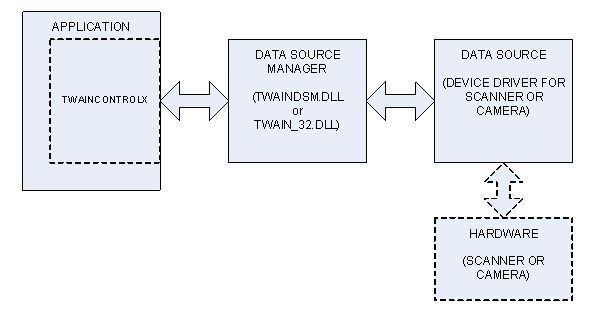
TWAIN defines the communication between three elements. The first element is the Application. This refers to the software you will create using TwainControlX as a component. The second element is the Data Source Manager (DSM). This is a dynamic link library that exists on all systems where TWAIN is to be used. All communication goes through the DSM. The third element is the Source. If an image is being acquired from hardware such as a scanner, the Source is the device driver for the hardware. Only the device driver communicates directly with the hardware.
All communication follows the arrows shown on the diagram. So if the Application requests that an image is scanned, this request is first sent to the Data Source Manager, which relays the request to the Source. The Source controls the scanner to scan the image, then sends the image back to the Application via the Source Manager.
In the documentation for TwainControlX and in the naming of functions, the word Device is often used instead of Source.
2.2. TWAIN Versions and the Source Manager
For most of the time that TWAIN has been in use, the version number of the TWAIN specification was 1.x (i.e., 1.7, 1.8 etc.). In 2008, version 2.0 was released, and this has been updated several times, the latest version being 2.3 in 2013.
As well as adding some new features, version 2.0 introduced some significant changes, including:
- Memory management between the application and the source is handled in a new way.
- A new mechanism known as ‘callback’ is introduced for the sending of messages from the source to the application, in particular to let the application know that an image is ready to be transferred.
- The application is required to carry out image transfers in a separate thread so that responses to communications are not delayed.
TwainControlX checks whether or not the DSM is compatible with version 2.0 or above, and if it is, the newer memory management, communication and image transfer methods will be used. If the DSM is only capable of supporting version 1.x, then TwainControlX will revert to the legacy behaviour. It should not matter whether or not the source is compatible with version 2.0, as the DSM is backwards compatible and can communicate with older drivers. However, our experience shows that many older drivers behave badly when used with the newer DSM, so functions are provided in TwainControlX to manage this situation if necessary (see the properties UseNewDSM and CallbackMode).
The Data Source Manager is one of two files. It is either ‘TWAIN_32.DLL’, which should be found in the Windows directory, or it is ‘TWAINDSM.DLL’ which should be in the appropriate system directory. On 32-bit systems, this is the System32 directory. On 64-bit systems there can be two versions of TWAINDSM.DLL, a 32-bit version in the SysWOW64 directory and a 64-bit version in the System32 directory.
TWAIN_32.DLL is normally installed as part of the operating system and should always be present on all 32-bit or 64-bit versions of Windows. TWAINDSM.DLL is newer and it will be necessary to install this in order to support the 2.x versions of TWAIN. TwainControlX will work with whichever version it finds, so if you require that your application uses a particular version of the DSM, you must make sure that the chosen version is installed and available for use on the end user system.
The installer for TwainControlX copies the latest version of the 32-bit TWAINDSM.DLL to a directory called x86DSM under the installation path. If you want your application to use this file it should be copied to the appropriate location as described above (SysWow64 on a 64-bit system or System32 on a 32-bit system). The 64-bit TWAINDSM.DLL is installed automatically by the TwainControlX installer.
The following functions help to manage the version of TWAIN in use or provide information about the version.
UseNewDSM As Boolean - Read/Write Property.
By default, TwainControlX will first search for TWAINDSM.DLL in the appropriate system directory. If it is found, it will be used as the Data Source Manager. If it is not found, the older TWAIN_32.DLL will be used instead.
By setting this property to False, the behaviour is reversed, and TWAIN_32.DLL will be used as the first choice. Only if TWAIN_32.DLL is not found and TWAINDSM.DLL is found will TWAINDSM.DLL be used. This should never happen in practice, as TWAIN_32.DLL should always be available.
If this property is set it will cause the connection to the DSM to be closed and re-opened. It is therefore recommended that it should only be set in the first few lines of code before any other use of TwainControlX. (Default = True).
DSM2x As Boolean - Read-only Property.
If this property returns True, the Data Source Manager currently in use supports version 2.0 or above of the TWAIN specification.
Device2x As Boolean - Read-only Property.
If this property returns True, the device currently selected supports version 2.0 or above of the TWAIN specification.
DeviceVersion As String - Read-only Property.
The version number of the TWAIN specification supported by the device currently selected.
DSMPath As String - Read-only Property.
Gives the full path and file name of the Data Source Manager in use. This can be useful to confirm that the DSM in use is the one that is expected to be in use if multiple DSM files are available on the system.
CallbackMode As Long - Read/Write Property.
When using a new DSM compatible with TWAIN version 2.x, some problems can be experienced with older device drivers that are not compatible. In some cases this is due to the use of the new ‘callback’ method for communications between the source and the application.
This property has three possible values that determine whether or not callback will be used.
1 - Callback is always used if the DSM is version 2.x compatible.
2 - Callback is used if both the DSM and the device driver are version 2.x compatible.
3 - Callback is never used.
(Default = 2).
3. Selecting the Device
The first step to acquiring an image is to select the hardware device to be used. There are three alternative ways to do this. The first is to use the SelectDevice method which will bring up a dialog box offering the user a choice from the list of devices installed on the system. Alternatively, the device number can be set directly using the CurrentDevice property or the SelectDeviceByName function can be called if the exact name is known.
Two other properties are provided to give access to information about the installed devices. These are DeviceCount and DeviceName. These could be used, for example, to create a custom dialog for device selection rather than using the default dialog in SelectDevice.
Note that all hardware devices that have been installed on the system, i.e. their drivers are installed, will be available at this stage, regardless of whether or not they are physically connected to the system.
SelectDevice ( ) As Boolean - Method.
Displays a standard dialog box containing a list of the devices installed on the system. After selecting from the list and clicking “Select”, the value of CurrentDevice will be set automatically. The return value is True if a device was selected and False if the user clicked the Cancel button in the dialog box.
CurrentDevice As Long - Read/Write Property.
The index number of the currently selected TWAIN device. The first installed device on the system is number 0, so for example, on a system with 3 installed devices the possible values of CurrentDevice would be 0, 1 or 2. A value of -1 indicates that no device is selected. (Default = -1).
DefaultDevice As Long - Read/Write Property.
The index number considered to be the default by the DSM. This will be the device initially highlighted when the SelectDevice dialog is displayed. Note that this property is new in version 2.1 of the TWAIN specification and can be read but not set when using older versions of the DSM.
SelectDeviceByName (Name As String) As Boolean - Method.
Selects a TWAIN device by its name, which must be an exact match with the name as it would be returned by the DeviceName property. The name is case-sensitive. The return value is True if the device is successfully found and selected.
DeviceCount As Long - Read-only Property.
The number of TWAIN compliant devices currently installed on the system. Note that this property counts all installed devices, it does not matter whether they are physically connected at the present time.
DeviceName (Index As Long) As String - Read-only Property.
The name of the device referenced by Index.
4. Device Configuration
All TWAIN devices have a built-in user interface that is normally displayed when the device is used. This allows the user to adjust settings such as resolution and image size before acquiring the image. By default, TwainControlX will display this interface, in which case it is not necessary to configure the device first.
By setting the UseInterface property to False, this behaviour is overridden. In this case the image is acquired without displaying the interface and it will be necessary to configure the device first.
Properties and methods used for configuration are described in this section.
When values are set programmatically for these properties, TwainControlX will communicate with the currently selected device. At this stage it may be necessary for the device to be connected and you can check this using the Connected property. Some values of properties cannot be set on some devices and this can be checked using other properties, e.g. PixelTypeAllowed.
4.1. General Configuration Functions
Connected As Boolean - Read-only Property.
If this property returns True, the device driver of the currently selected device reports that the device is physically connected.
Units As TxTwainUnits - Read/Write Property.
The units of measure to be used for any measurement related to the image. This is an enumerated property which can take one of the following values:
| TxTwainUnits | ||
| unInches: | 0 | Inches. |
| unCentimeters: | 1 | Centimeters. |
| unPicas: | 2 | Picas. |
| unPoints: | 3 | Points. |
| unTwips: | 4 | Twips. |
| unPixels: | 5 | Pixels. |
| unMillimeters: | 6 | Millimeters. |
| unUnknown: | -1 | No recognisable response from device. |
Units should always be selected that are appropriate for the type of device being used. To define the area of a page to be scanned, it is meaningless to use pixels. A unit for measuring real lengths and widths such as inches or centimeters should be used. Likewise, the image from a camera can only be sized in pixels.
UnitsAllowed (UnitType As TxTwainUnits) As Boolean - Read-only Property.
Returns True if the currently selected device will support the specified value for the Units property.
4.2. Essential Functions
The functions in this section can be considered as the basic, essential ones that commonly need to be used. They relate to the colour format, resolution and size of the image.
PixelType As TxPixelType - Read/Write Property.
The type of colour format used to define the pixels in the image. This is an enumerated property which can take any of the following values:
| TxPixelType | ||
| ptBW: | 0 | Black and white. |
| ptGray: | 1 | Greyscale. |
| ptRGB: | 2 | Red/Green/Blue Colour. |
| ptPalette: | 3 | Paletted Colour. |
| ptUnknown: | -1 | No recognisable response from device. |
PixelTypeAllowed (PixType As TxPixelType) As Boolean - Read-only Property.
Returns True if the currently selected device will support the specified value for the PixelType property.
Resolution As Double - Read/Write Property.
The resolution of the image in pixels per unit of measure. For example, if Units is set to unInches, a value of 300 indicates a resolution of 300 dpi (dots per inch). Devices will only support particular values for Resolution as indicated by the properties ResolutionMin, ResolutionMax, ResolutionStep. ResolutionCount and ResolutionAllowedValue. If Resolution is set to an unsupported value, the nearest allowable value will be used instead.
ResolutionMin As Double - Read-only Property.
The minimum resolution of the image in pixels per unit of measure that is supported by the currently selected device.
ResolutionMax As Double - Read-only Property.
The maximum resolution of the image in pixels per unit of measure that is supported by the currently selected device.
ResolutionStep As Double - Read-only Property.
The step size in supported resolutions of the currently selected device. For example, if a device has ResolutionMin = 100, ResolutionMax = 500 and ResolutionStep = 50, it will support Resolution values of 100, 150, 200, 250,….etc…, 500.
If ResolutionStep has the value -1, this indicates that the step size between the minimum and maximum values is not uniform. In this case, the possible values for Resolution can be found from the ResolutionCount and ResolutionAllowedValue properties.
ResolutionCount As Long - Read-only Property.
The number of possible values for Resolution. This is used in conjunction with the property ResolutionAllowedValue to identify the exact values available for Resolution.
ResolutionAllowedValue (Index As Long) As Double - Read-only Property.
Returns an allowed value for Resolution supported by the currently selected device from the list of available values. Index indicates the position of the value in the list.
Example: Populate a combobox with the available values for Resolution:
VB.NET:
For i = 1 To AxTwain1.ResolutionCount |
VB5/6:
For i = 1 To Twain1.ResolutionCount |
Resolution in X and Y Directions
On many devices there is no distinction between resolution in the X direction (across the page) and resolution in the Y direction (down the page). The properties described above, i.e., Resolution, ResolutionMin, etc., are used to set the resolution to the same value in both directions.
If the current device supports the setting of different resolutions in the two directions, an alternative set of properties are available. These are:
XResolution / XResolutionMin / XResolutionMax / XResolutionStep, and
YResolution / YResolutionMin / YResolutionMax / YResolutionStep
These properties are used in exactly the same way as the properties already described, but allow for the resolution in the two directions to be set independently.
ImageLeft As Double - Read/Write Property.
The position of the left side of the image, measured in Units from the left side of the device. For example, if Units is set to unInches and ImageLeft = 1.5, an image acquired from a scanner will begin 1.5 inches from the left side of the scanner.
ImageTop As Double - Read/Write Property.
The position of the top of the image, measured in Units from the top of the device.
ImageRight As Double - Read/Write Property.
The position of the right side of the image, measured in Units from the left side of the device.
ImageBottom As Double - Read/Write Property.
The position of the bottom of the image, measured in Units from the top of the device.
SetImageLayout (Left As Double, Right As Double, Top As Double, Bottom As Double) - Method.
This method allows the ImageLeft, ImageRight, etc. properties to be set simultaneously using a single command.
Example: Set the area to be scanned to be US Letter (8.5" x 11"):
VB.NET:
AxTwain1.SetImageLayout(0.0, 8.5, 0.0, 11.0) |
VB5/6:
Twain1.SetImageLayout 0#, 8.5, 0#, 11# |
MaxWidth As Double - Read-only Property.
The maximum physical width of the device in Units, e.g., for a flatbed scanner, this will return the size of the flatbed. For devices with no meaningful size, e.g., cameras, -1 is returned.
MaxHeight As Double - Read-only Property.
The maximum physical height of the device in Units, e.g., for a flatbed scanner, this will return the size of the flatbed. For devices with no meaningful size, e.g., cameras, -1 is returned.
4.3. Image Quality Functions
These functions affect the quality of the image.
Brightness As Double - Read/Write Property.
The brightness of the image to be acquired. The units are arbitrary as defined by the device. Devices will only support particular values for Brightness as indicated by the properties BrightnessMin, BrightnessMax and BrightnessStep. If Brightness is set to an unsupported value, the nearest allowable value will be used instead.
BrightnessMin As Double - Read-only Property.
The minimum brightness of the image in the arbitrary units used by the device. This value is normally -1000, but some devices may use other values.
BrightnessMax As Double - Read-only Property.
The maximum brightness of the image in the arbitrary units used by the device. This value is normally +1000, but some devices may use other values.
BrightnessStep As Double - Read-only Property.
The step size in supported brightness values of the currently selected device.
If BrightnessStep has the value -1, this indicates that the step size between the minimum and maximum values is not uniform.
Contrast As Double - Read/Write Property.
The contrast of the image to be acquired. The units are arbitrary as defined by the device. Devices will only support particular values for Contrast as indicated by the properties ContrastMin, ContrastMax and ContrastStep. If Contrast is set to an unsupported value, the nearest allowable value will be used instead.
ContrastMin As Double - Read-only Property.
The minimum contrast of the image in the arbitrary units used by the device. This value is normally -1000, but some devices may use other values.
ContrastMax As Double - Read-only Property.
The maximum contrast of the image in the arbitrary units used by the device. This value is normally +1000, but some devices may use other values.
ContrastStep As Double - Read-only Property.
The step size in supported contrast values of the currently selected device.
If ContrastStep has the value -1, this indicates that the step size between the minimum and maximum values is not uniform.
Threshold As Double - Read/Write Property.
This property determines the dividing line between black pixels and white pixels for black and white scanning. It can take any value from 0 to 255, and for most devices, the default value is 128. A smaller value gives a whiter image and a larger value gives a blacker image.
With many scanners it is necessary to set the PixelType property to ptBW before this property can be accessed.
4.4. Device Processing Functions
These functions are used to request that the device performs some processing while acquiring the image.
AutoBright As Boolean - Read/Write Property.
Setting this property to True will enable the Automatic Brightness function of the device, if available. Note that this property only has any effect with devices that support such a feature.
AutoDeskew As Boolean - Read/Write Property.
Setting this property to True will enable the Automatic Deskew Correction feature of the device, if available. This will rotate the image received from the device (usually a scanner) to align the image correctly when the paper has not been aligned correctly. Note that this property only has any effect with devices that support such a feature.
AutoBorder As Boolean - Read/Write Property.
Setting this property to True will enable the Automatic Border Detection feature of the device, if available. This will mean the border of the image or edge of the page is detected and the size of the acquired image set accordingly.
5. Acquiring the Image
The Acquire method is used to read an image from the device. There are some options the user can set to define how the acquire process will be executed.
The main option is whether or not to use the default user interface provided by the device. This will determine whether it is necessary to configure the device before calling the Acquire method. The UseInterface property is used to select this option. Note that some hardware devices do not allow the interface to be disabled. This behaviour can be determined by checking the CanDisableInterface property.
If the user interface is disabled, it is still possible to display a progress bar while the image is being acquired by setting the ShowProgress property.
The AcquireToFile method allows images to be saved direct to disk from the device driver without being processed through TwainControlX. This method is not available in the trial version.
Starts the process of reading an image from the currently selected device. The exact behaviour of the Acquire method is determined by the following properties.
UseInterface As Boolean - Read/Write Property.
Determines whether the default user interface provided by the device will be displayed when the Acquire method is called. (Default = True).
ShowProgress As Boolean - Read/Write Property.
If this property is True, and UseInterface is False, the device will display a progress bar during the acquisition of the image. If UseInterface is True, this property has no effect. (Default = False).
WaitForAcquire As Boolean - Read/Write Property.
If this property is True, the calling application will stop executing when the Acquire method is called and the next line of code will only be executed after the acquisition of the image has been completed. If this property is False, the calling application will continue to execute and the Acquire method simply initiates the acquisition process. In this case, it is necessary to write an event handling procedure to finish the processing of the image (e.g., save it to file) after the OnAcquire event is fired. (Default = True).
CanDisableInterface As Boolean - Read-only Property.
Some devices do not allow their user interface to be disabled, which means they will ignore the setting of UseInterface to False and always respond as if UseInterface is True. This property indicates whether or not the currently selected device behaves in this way.
Busy As Boolean - Read-only Property.
Indicates that the currently selected device is busy acquiring an image, i.e. the Acquire method has been called to start importing the image but this process has not yet been completed.
AcquireToFile (FileName As String) - Method.
Commands the currently selected device to acquire an image by direct file transfer. FileName must be a complete path to the file, including the file extension. The file will be written to disk by the device driver and will not be available in memory. The file format is determined by the FileFormat property.
Important note: AcquireToFile is not available in the trial version.
FileTransferSupported As Boolean - Read-only Property.
Indicates whether the currently selected device supports direct file transfer, i.e., use of the AcquireToFile function.
FileFormat As TxFileFormat - Read/Write Property.
The file format to be used when acquiring by direct file transfer using the AcquireToFile command:
| TxFileFormat | ||
| ffTIFF: | 0 | TIFF format. |
| ffPICT: | 1 | PICT format. |
| ffBMP: | 2 | BMP format. |
| ffXBM: | 3 | XBM format. |
| ffJPEG: | 4 | JPEG (JFIF) format. |
| ffFPX: | 5 | FlashPix format. |
| ffTIFFMult: | 6 | Multi-page TIFF format. |
| ffPNG: | 7 | PNG format. |
| ffSPIFF: | 8 | Still Picture Interchange format. |
| ffEXIF: | 9 | EXIF format. |
| ffPDF: | 10 | Adobe PDF format. |
| ffJP2: | 11 | JPEG 2000 (.JP2) format. |
| ffJPX: | 13 | JPEG 2000 (.JPX) format. |
| ffDJVU: | 14 | Déjà vu file format by LizardTech. |
| ffPDFA: | 15 | Adobe PDF/A format. |
| ffPDFA2: | 16 | Adobe PDF/A format. |
| ffUnknown: | -1 | No recognisable response from device. |
FileFormatAllowed (FileType As TxFileFormat) - Read-only Property.
Returns True if the currently selected device will support the specified value for the FileFormat property.
5.1. Events
Events can be raised by TwainControlX during the image acquisition process.
If the Acquire method is used with WaitForAcquire set to False, it will be necessary to use these events to process the images received by the control and to determine when image acquisition is completed.
This is raised when acquisition of an image is completed.
This is raised when the acquisition of an image is cancelled, for example by a user closing the device’s user interface or clicking the Cancel button on the progress bar.
This is raised when the Acquire function completes execution. This can be used when multiple images are being scanned from an ADF, to signal that the last page has been read.
6. Exporting the Image
When the acquisition of an image is complete, the image will be held in the memory of TwainControlX. Before this image can be used in any way it is necessary to copy it somewhere else. There are several possibilities:
- Copy it to another control to be displayed, e.g. a PictureBox control.
- Save it to a file on disk. This can be a new file, or the image can be inserted into an existing TIF or PDF file.
- Copy it to the clipboard for pasting into another application.
Methods and properties are provided to allow all these options.
SaveToFile (FileName As String) - Method.
Saves the image as a file on disk. FileName must be a complete path to the file, including the file extension. The format of the saved file is determined by the file extension which must be one of the following:
| .BMP: | File is saved in Bitmap format. |
| .JPG or .JPEG: | File is saved in Jpeg format. |
| .TIF or .TIFF: | File is saved in TIFF format. |
| .PDF: | File is saved in PDF format. |
PDF (Portable Document Format) is copyright of Adobe Systems Incorporated.
JPEGQuality As Long - Read/Write Property.
When an image is saved in Jpeg format (file extensions .jpg or .jpeg), the quality can be varied between a high quality image, which gives a large file, or a lower quality image, which gives a smaller file. This property can take a value from 1 to 100. 100 is the highest quality, 1 is very low quality. (Default = 90).
InsertTIF (Source As String, Dest As String, Page As Long) - Method.
Inserts the image as an additional page into an existing TIF file. Source must be a complete path to the existing file, Dest is a complete path to the new file to be created, and Page is the position in the TIF file where the image will be inserted with the first image in the file being Page = 1.
Source and Dest can be identical, in which case, the existing file is replaced. If Dest is an empty string, the existing file will be replaced. If Source cannot be found, Dest will be created new with only the single image. If Page is set to zero, the image will be inserted at the end of the file.
InsertPDF (Source As String, Dest As String, Page As Long) - Method.
Inserts the image as an additional page into an existing PDF file. Source must be a complete path to the existing file, Dest is a complete path to the new file to be created, and Page is the position in the PDF file where the image will be inserted with the first image in the file being Page = 1.
Source and Dest can be identical, in which case, the existing file is replaced. If Dest is an empty string, the existing file will be replaced. If Source cannot be found, Dest will be created new with only the single image. If Page is set to zero, the image will be inserted at the end of the file.
Picture As IPictureDisp - Read-only Property.
Provides the image data in a format that can be transferred to any object with a ‘Picture’ property, e.g. a PictureBox or ListImage in VB.
Example: Copy an image from a TwainControlX object called ‘Twain1’ to a VB PictureBox object called ‘Picture1’:
VB.NET:
Picture1.Image = Twain1.Picture |
VB5/6:
Picture1.Picture = Twain1.Picture |
Places a copy of the acquired image onto the Windows clipboard. This can then be pasted into another application as a bitmap or as a device independent bitmap (DIB).
BMPHandle As Long - Read-only Property.
Returns a Windows handle to a copy of the image that has been acquired by the control. This can be used, for example, to transfer a copy of the image to another object that uses bitmap handles, and is particularly useful where the Picture property cannot be used. The following code example in Delphi shows how the image can be assigned to a Delphi Image control for display:
Image1.Picture.Bitmap.Handle := Twain1.BMPHandle; |
7. Multiple Images
In its default mode of operation, as described in the previous sections, TwainControlX only acquires one image each time the Acquire method is called. By setting the MultiImage property to True, this behaviour is changed, and the acquisition of multiple images is possible, e.g., by using a scanner with an automatic document feeder (ADF).
7.1. Configuration
The following properties are used to configure the multi-image acquisition prior to calling the Acquire command.
MultiImage As Boolean - Read/Write Property.
Must be set to True to activate multi-image mode in TwainControlX. (Default = False).
KeepImages As Boolean - Read/Write Property.
When KeepImages is set to False, each image acquired replaces the previous image in memory. Each image must be saved, if required, by placing appropriate code (e.g., a SaveToFile command) in the event handler of the OnAcquire event.
Alternatively, KeepImages can be set to True, in which case, all the images acquired are retained in memory until the Acquire command is completed. (Default = False).
ClearBeforeAcquire As Boolean - Read/Write Property.
By default, all images previously held in memory by the control are cleared when a new call is made to the Acquire function. By setting ClearBeforeAcquire to False, these images are retained in memory allowing the results of several Acquire calls to be available simultaneously. (Default = True).
KeepInterfaceOpen As Boolean - Read/Write Property.
By default, the user interface of the device is always closed after an image has been acquired. Unless an ADF is being used, this terminates the Acquire command. By setting KeepInterfaceOpen to True, the interface remains open and can be used to acquire multiple images until closed by the user. The properties MultiImage and UseInterface must both be set to True for KeepInterfaceOpen = True to be used. (Default = False).
ImagesToRead As Long - Read/Write Property.
Sets the maximum number of images to acquire in multi-image mode. The Acquire command will stop when this number of images have been read. It may stop earlier if no more images are available, e.g., the document feeder is empty. Setting a value of zero for this property means an unlimited number of images will be read, i.e., the Acquire command continues until no more images are available. (Default = 0).
HasADF As Boolean - Read-only Property.
Indicates whether the currently selected device has an automatic document feeder (ADF).
UseADF As Boolean - Read/Write Property.
Determines whether an ADF (if available) will be used.
ADFLoaded As Boolean - Read-only Property.
Indicates whether the ADF is loaded with pages or not.
DuplexSupported As Long - Read-only Property.
Indicates whether the currently selected device supports duplex scanning. If so, it further indicates whether one-path or two-path duplex is supported. The value can be 0 (duplex unsupported), 1 (one-path duplex supported) or 2 (two-path duplex supported).
DuplexEnabled As Boolean - Read/Write Property.
Must be set to True to enable duplex scanning.
7.2. Exporting Multiple Images
Multi-image TIFF or PDF files can be created either by saving all the images at once using SaveMultiPageTIF or SaveMultiPagePDF, or by building the files in memory one image at a time using AddToTIF/WriteTIF or AddToPDF/WritePDF.
SaveMultiPageTIF (FileName As String) - Method.
Saves all the images currently held in memory to a multi-page TIFF file.
SaveMultiPagePDF (FileName As String) - Method.
Saves all the images currently held in memory to a multi-page PDF file, one image per page.
AddToTIF (Page As Long) - Method.
Stores the image temporarily in memory as a page which is ready to be written to a TIFF file. Page is the number of the page in the TIFF file where the image will be saved. If Page is set to zero, the image will be positioned at the end of the file.
WriteTIF (FileName As String) - Method.
Saves a TIFF file to disk. The file will include all the images that have previously been stored using the AddToTIF function. FileName must be a complete path to the file.
Clears all the images from memory that have been stored using AddToTIF.
AddToPDF (Page As Long) - Method.
Stores the image temporarily in memory as a page which is ready to be written to a PDF file. Page is the number of the page in the PDF file where the image will be saved. If Page is set to zero, the image will be positioned at the end of the file.
WritePDF (FileName As String) - Method.
Saves a PDF file to disk. The file will include all the images that have previously been stored using the AddToPDF function. FileName must be a complete path to the file.
Clears all the images from memory that have been stored using AddToPDF.
Example: This example shows how to use the above functions. Here, five images are scanned separately and then written to a PDF file with five pages. The equivalent functions for TIF files can be used in exactly the same way:
VB.NET:
AxTwain1.ClearPDF() |
VB5/6:
Twain1.ClearPDF |
ImageCount As Long - Read-only Property.
The number of images currently held in memory after acquiring in multi-image mode.
PageCount As Long - Read-only Property.
The number of images that were acquired the last time the Acquire command was executed.
If KeepImages and ClearBeforeAcquire are True, ImageCount and PageCount should return the same value.
If KeepImages is False, ImageCount should normally be 1, whereas PageCount shows the number of pages that were read.
SelectedImage As Long - Read/Write Property.
This property is used to identify the image that will be exported by SaveToFile or other export commands when more than one image is held in memory. (Default = 1).
Example: Save each of five images recently acquired to a series of numbered files (Image1.bmp, Image2.bmp…etc.):
VB.NET:
For i = 1 To AxTwain1.ImageCount |
VB5/6:
For i = 1 To Twain1.ImageCount |
8. Miscellaneous Functions
This section describes miscellaneous functions in various categories.
8.1. Blank Page Detection
Blank pages can be detected using the following functions. This feature can be useful when scanning multiple documents as blank pages can be used as separator pages to mark the end of one document and the start of another.
Example VB projects showing how to use this technique are available on the Ciansoft web site at:
VB.NET
https://www.ciansoft.com/samples/tcxvbmult3.htm
VB 5/6
https://www.ciansoft.com/samples/tcxvbnetmult3.htm
IsBlank As Boolean - Read-only Property.
Indicates whether or not the current image is a blank white page. This property is typically used to identify separator pages when scanning multiple pages in a document feeder, the blank pages having been added to the batch to indicate where one multi-page file should end and the next begin. The sensitivity of this property can be adjusted using the BlankTol and BlankBorder properties.
BlankTol As Long - Read/Write Property.
When the IsBlank property is used, some allowance must be made for imperfections. For example, there may be some marks on the blank pages, or specks of dust on the scanner glass that could cause some black pixels to appear in the scanned image. This property allows the tolerance to be adjusted. For black and white images it represents the number of non-white pixels that are permitted per 1,000,000 total pixels in the image before a page is judged not to be blank. For other colour formats the definition is different and in general a higher value is needed for this property when not scanning in black and white. (Default = 100).
BlankBorder As Long - Read/Write Property.
The IsBlank property will ignore some pixels around the edge of the page when checking for a blank page. This allows for cases where the paper is slightly misaligned in the scanner and a black edge appears on the scanned image. This property allows the size of this border to be modified. The value is the percentage of the image height and width that will be ignored as border. For example, setting BlankBorder to 10% when scanning 8.5” x 11” paper will mean that a top and bottom margin each of 1.1” and a left and right margin each of 0.85” will be ignored by the IsBlank property. (Default = 5.0).
8.2. Magnetic Ink Character Recognition (MICR)
Blank pages can be detected using the following functions. This feature can be useful when scanning multiple documents as blank pages can be used as separator pages to mark the end of one document and the start of another.
MICREnabled As Boolean - Read/Write Property.
Enables Magnetic Ink Character Recognition (MICR) on scanners which support this feature. Must be set to True before calling the Acquire method. (Default = False).
MICRString As String - Read-only Property.
The data returned by MICR is normally a character string. This property is used to retrieve the value for the most recently scanned image.
MICRHandle As Long - Read-only Property.
Returns a Windows handle to the MICR data for the most recently scanned image.
8.3. PDF File Properties
The following properties allow the property tags of PDF files to be set. They are all strings and their use is self-explanatory. All are empty strings by default.
PDFTitle As String - Read/Write Property.
PDFSubject As String - Read/Write Property.
PDFAuthor As String - Read/Write Property.
PDFKeywords As String - Read/Write Property.
8.4. Other Miscellaneous Functions
AppName As String - Read/Write Property.
Some devices will display, or use in some other way, the name of the application which is calling them. For example, some scanners show a message such as “Scanning to Application XYZ..”, while scanning is in progress. AppName allows the name of your application to be set for such use by the device. By default, this is set to ‘Ciansoft TwainControlX’, but you can change this to the name of your application.
If this property is set it will cause the connection to the DSM to be closed and re-opened. It is therefore recommended that it should only be set in the first few lines of code before any other use of TwainControlX.
Unloads the TWAIN Data Source Manager library from memory. Under normal circumstances there is never any reason to call this function, but it can be used to reset the control if an error occurs. After calling this function, the library will be reloaded automatically as soon as any function that requires it is called.
Closes the connection to the currently selected device. This is similar to the Unload method except that it does not unload the DSM from memory.
Clears all previously scanned images from memory.
DeleteImage (Index As Long) - Method.
Deletes a single image from memory. The image to be deleted is indicated by the value of Index.
Version As String - Read-only Property.
Returns the version information for the OCX file.
Displays a dialogue box with information about the OCX file, including the version number.
9. Deploying an Application
In order to deploy an application that uses TwainControlX you will need to distribute the OCX file, TwainControlX.ocx, together with the files that make up your application. Depending on whether your application is 32 or 64 bit, you may need to distribute either the 32 or 64 bit version of the OCX file, or both. These files will need to be registered on the machine running your application and you may wish to use a proprietary installer to do this.
The number of copies of the OCX file that may be distributed is not limited by the licence. In order to use the control in a design environment the licence file, TwainControlX.lic, is also required. A separate licensed copy of TwainControlX is required for each computer it is used on in the design environment.
10. Web Applications
TwainControlX can be used as a clientside control in a web application running in Internet Explorer. For this purpose, a licence package file (LPK) is provided in the installation package and for the full version a digitally signed CAB file is provided.
More information about configuring TwainControlX for use in a web application is available here.
TwainControlX does not have the capability of uploading image files to a server and does not display images without copying the image to another control. For these reasons we recommend that one of the following alternative ActiveX controls are considered instead for web applications:
Ciansoft WebTwainX: This is a pre-configured image acquisition interface with some image editing features and full capability for uploading images to a web server.
Chestysoft csXImage: This is a comprehensive image processing control which includes all the image acquisition capabilities of TwainControlX and can be used in a web application for image editing, display and uploading.
11. Revision History
The current version of TwainControlX is 4.1. New features (since version 2.1) include:
New in Version 2.1
InsertTIF method.
Brightness and associated properties.
Contrast and associated properties.
AutoBright property.
AutoDeskew property.
New in Version 2.2
Save images to PDF file format, either single or multiple pages.
New in Version 2.3
Duplex scanning supported.
OnFinish event.
ClearBeforeAcquire property.
Improved multi-page TIFF support (AddToTIF, WriteTIF, ClearTIF functions).
Threshold property.
MaxWidth, MaxHeight properties.
ADFLoaded property.
Unload function.
Blank page detection (IsBlank property).
New in Version 2.4
InsertPDF method.
AcquireToFile and associated properties (FileFormat, FileFormatAllowed, FileTransferSupported).
KeepInterfaceOpen property.
BlankBorder property.
AutoBorder property.
PDF file properties.
Support for MICR.
SelectDeviceByName method.
DeleteImage method.
New in Version 3.0
Full compatibility with version 2.1 of the TWAIN specification.
UseNewDSM, DSM2x, Device2x, DeviceVersion, DSMPath and CallbackMode properties.
ResolutionCount and ResolutionAllowedValue properties.
UnloadDevice method.
Version property.
New in Version 3.1
Compatible with version 2.2 of the TWAIN specification.
New in Version 4.0
64-bit version of TwainControlX.
New in Version 4.1
Compatible with version 2.3 of the TWAIN specification.
12. Alphabetical List of Functions
Click on one of the links below to go directly to information about that function:
|
|