Ciansoft PDFBuilderASP User Manual (Version 2.3)
Note: This User Manual is also available in pdf format. The pdf version is included in download files for both the trial and full versions of PDFBuilderASP.
Introduction
Ciansoft PDFBuilderASP is a COM Object that enables PDF files to be created. It is primarily intended to be used on a web server running ASP (either classic ASP or ASP.NET) or an alternative scripting language. This document contains comprehensive instructions on installing and using PDFBuilderASP.
For further information, visit our website: www.ciansoft.com.
Alternatively, contact us by email, we will be pleased to answer your questions: info@ciansoft.com.
How to Use This Manual
The first part of this manual explains how to start using PDFBuilderASP. This describes installation of the component, the basic approach to creating a PDF document, and information about the trial version. We especially recommend reading 1.2 Steps to Create PDF Documents first in order to understand the general principles of using this component.
After that, the remainder of the manual describes all the available functions. For each function, details as shown below are available:
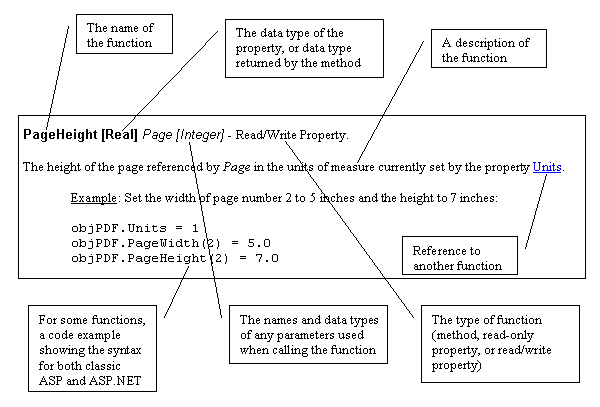
A complete Alphabetical List of Functions can be found at the end of this document.
Throughout the document example code is given to show the syntax for classic ASP (using VBScript) and ASP.NET (using Visual Basic.NET) but other scripting languages can equally well be used.
If you are not sure how to get started and especially if you are new to the use of server components in ASP, we also recommend reading this "getting started" guide.
Table of Contents
1.1. Installation
1.2. Steps to Create PDF Documents
1.3. The Trial Version
1.4. Creating an Instance of the Object
2. Managing Pages in the Document
3.1. Compression of Image Data
5.1. Adding Hyperlinks in Text
7. Generating the PDF Document
10. Alphabetical List of Functions

1. Getting Started
1.1. Installation
PDFBuilderASP is distributed as an archive file in ZIP format (PDFBuilderASP.zip). This archive contains the following files:
| PDFBuilderASP.dll: | The component |
| PDFBuilderASP User Manual.pdf: | These instructions in PDF format |
| Licence_xxx.txt: | A copy of the licence agreement |
The DLL file, PDFBuilderASP.dll, must be registered on the server or other computer running the script or application. To do this, the command line utility Regsvr32.exe can be used. This is usually found in the Windows system folder and runs using the syntax:
regsvr32 ocxname
where dllname is the path and name of the dll file to register.
The application using the component must have appropriate permissions. This means that for use in ASP, the Internet Guest User account on the server must have Read and Execute permissions on the DLL file. Appropriate permissions must also be set if the component is to be used to read or write files on the server.
As a COM object, PDFBuilderASP can be used in a range of other Windows based environments and languages, but for form based languages such as Visual Basic or Delphi, we recommend using its sister product, the ActiveX control PDFBuilderX instead.
1.2. Steps to Create PDF Documents
An instance of PDFBuilderASP created in a script represents a single PDF document. In order to create and save a document, the following steps must be followed:
- Configure document settings such as the default page size and units of measure.
- Add pages to the document.
- Add objects to the document that are to be written on the pages.This can include images, graphics or blocks of text.These objects are referred to as "Resources".
- Draw resources onto the pages.
- Stream the file to the browser or save it to disk.
Resources are added to the document in different ways. For images, the AddImageFile function can be used to add an image from a file on disk. Graphics and blocks of text are created using the CreateGraphic or CreateText functions, with further functions then being used to draw the graphic or add the text block content.
All resources are allocated a unique identifying number. This is the return value of the function used to add or create the resource.
Resources are drawn on pages using the ApplyResource function. This function also returns a reference number, which can then be used to identify the object on the page. This reference number is used when calling functions to change the position or size of the object as it is displayed on the page.
Note that this reference number is not the same as the number that identifies resources in the document as a whole and should not be confused with it. To help clarify this issue, parameters used in functions will usually be called Resource where they refer to a resource identifier, Page where they refer to a page number and Index where they refer to an object on a page.
A resource can be used as many times as necessary, either on the same page, or on multiple pages. This is useful, for example, for setting up headers and footers on pages of a document, or for displaying an image full size on one page and as a thumbnail elsewhere in the document.
An example ASP script showing how a simple document involving images, graphics and text is created and displayed in the browser is available on our web site.
Similar example scripts are available for ASP.Net and for PHP. Other examples can be accessed from the PDFBuilderASP product page.
1.3. The Trial Version
The trial version of PDFBuilderASP is supplied as a different DLL file, called PDFBuilderASPTrial.dll. The trial version has all the functionality of the full version of the component. The only limitation is that each page of PDF files created using the component will have a line of text written on it indicating that trial software was used. Visit the Ciansoft web site to purchase the full version.
1.4. Creating an Instance of the Object
Before PDFBuilderASP can be used in an ASP script an instance of the object must be created using the Server.CreateObject command. The syntax for this is:
Set objPDF = Server.CreateObject("PDFBuilderASP.PDFSvrDoc") |
Where objPDF is a variable name. Any variable name can be used, but we usually use the variable name "objPDF" in code examples in these instructions and elsewhere on our web site.
For the trial version, the syntax is:
Set objPDF = Server.CreateObject("PDFBuilderASPTrial.PDFSvrDoc") |
In ASP.NET, a Dim statement must be used with the following syntax:
Dim objPDF = Server.CreateObject("PDFBuilderASP.PDFSvrDoc") |
or,
Dim objPDF = Server.CreateObject("PDFBuilderASPTrial.PDFSvrDoc") |
2. Managing Pages in the Document
The following functions are used to add pages to the document, to change the page sizes and to adjust the position and size of objects on a page. Note that the functions Locate, ScaleObject and Rotate can be applied to images and text, but not to graphics.
AddPage Page [Integer] - Method.
Adds a new page to the document. The position of the page in the document is defined by Page. If Page is 0, the page will be added at the end of the document. The page size is initially defined by the DefaultPageSize property, but can be modified after the page has been added.
Example: Add a new page at the end of the document:
Classic ASP:
objPDF.AddPage 0 |
ASP.NET:
| objPDF.AddPage(0) |
PageSize [Integer] Page [Integer] - Read/Write Property.
The size of the page referenced by Page. The possible values of which are listed below.
| 0 | Page size is defined by the PageWidth and PageHeight properties |
| 1 | A4 Portrait (210 mm x 297 mm) |
| 2 | A4 Landscape (297 mm x 210 mm) |
| 3 | Letter Portrait (8.5" x 11") |
| 4 | Letter Landscape (11" x 8.5") |
| 5 | A3 Portrait (297 mm x 420 mm) |
| 6 | A3 Landscape (420 mm x 297 mm) |
| 7 | A5 Portrait (148.5 mm x 210 mm) |
| 8 | A5 Landscape (210 mm x 148.5 mm) |
| 9 | Tabloid Portrait (11" x 17") |
| 10 | Tabloid Landscape (17" x 11") |
| 11 | Legal Portrait (8.5" x 14") |
| 12 | Legal Landscape (14" x 8.5") |
| 13 | Statement Portrait (5.5" x 8.5") |
| 14 | Statement Landscape (8.5" x 5.5") |
| 15 | Executive Portrait (7.25" x 10.5") |
| 16 | Executive Landscape (10.5" x 7.25") |
Example: Set the size of page number 2 of the document to be A3 Landscape:
objPDF.PageSize(2) = 6 |
PageWidth [Real] Page [Integer] - Read/Write Property.
The width of the page referenced by Page in the units of measure currently set by the property Units.
PageHeight [Real] Page [Integer] - Read/Write Property.
The height of the page referenced by Page in the units of measure currently set by the property Units.
Example: Set the width of page number 2 to 5 inches and the height to 7 inches:
objPDF.Units = 1 |
DefaultPageSize [Integer] - Read/Write Property.
The page size that will be used for new pages as they are added to the document. See PageSize for definition of possible values. (Default = 1, A4 Portrait).
Example: Set the default page size to US Letter size (8.5" x 11"):
objPDF.DefaultPageSize = 3 |
ApplyResource [Integer] Page [Integer], Resource [Integer] - Method.
Applies the resource referenced by Resource to the page referenced by Page. The resource is applied using default sizing and positioning which can then be modified using the Locate or ScaleObject functions. The return value of this method indicates the index number of this specific instance of the resource on this specific page.
Example: Apply a text block referenced by the resource number Text1 (which is the return value of the CreateText method) to page 1 of the document:
Classic ASP:
TextIndex = objPDF.ApplyResource 1, Text1 |
ASP.NET:
TextIndex = objPDF.ApplyResource(1, Text1) |
Locate Page [Integer], Index [Integer], X [Real], Y [Real] - Method.
The object referenced by Index on the page referenced by Page will be positioned on the page. If the object is an image or a left-justified text block, its top-left corner will be at the co-ordinates X, Y measured from the bottom-left corner of the page. If the object is a centred or right-justified text block, then the co-ordinates will refer to the top-centre or top-right of the object instead.
Example: Locate the text block that was applied in the above example, so that it is positioned in the top-left corner of the page. Note the use of the PageHeight property to determine how far the top of the page is from the bottom of the page that is used as the reference point:
Classic ASP:
objPDF.Locate 1, TextIndex, 0.0, objPDF.PageHeight(1) |
ASP.NET:
objPDF.Locate(1, TextIndex, 0.0, objPDF.PageHeight(1)) |
ScaleObject Page [Integer], Index [Integer], ScaleFactor [Real] - Method.
The object referenced by Index on the page referenced by Page will be scaled. ScaleFactor is a percentage value, so an object will be displayed at normal size if this value is 100. For example, to display an image as a thumbnail, one eighth of its normal size, use a ScaleFactor of 12.5, i.e., 100/8. Page and Index are Integers; ScaleFactor is Real.
Example: Scale the text block that was applied in the above examples, so that it is displayed at twice its original size:
Classic ASP:
objPDF.ScaleObject 1, TextIndex, 200.0 |
ASP.NET:
objPDF.ScaleObject(1, TextIndex, 200.0) |
Rotate Page [Integer], Index [Integer], Angle [Real] - Method.
The object referenced by Index on the page referenced by Page will be rotated counter-clockwise by Angle degrees. The object pivots on its top-left corner.
Example: Rotate the text block that was applied in the above examples, so that it is inclined 10 degrees counter-clockwise from the horizontal:
Classic ASP:
objPDF.Rotate 1, TextIndex, 10.0 |
ASP.NET:
objPDF.Rotate(1, TextIndex, 10.0) |
3. Working with Images
Images can be added to the document as resources either by reading image files in a supported format from disk, by copying a bitmap in memory as a bitmap handle or by reading an image stored as an array of bytes in memory.
AddImageFile [Integer] FileName [String] - Method.
Adds an image from a file on disk as a resource in the document. The return value of the function is the resource identifying number. Images in the following file formats can be used: .bmp, .tif, .jpg, .png, .gif, .pcx, .psd, .wbmp. FileName is a String and must be a complete path to the file including the file extension.
Example: Read a GIF file from the server directory where the ASP script is located, and store the resource number referencing the image in the variable Logo:
Logo = objPDF.AddImageFile(Server.MapPath("mylogo.gif")) |
AddImageBMPHandle [Integer] Handle [Integer] - Method.
Adds an image referenced by a bitmap handle. This can be used to transfer an image to PDFBuilderASP directly from another component used for processing images, without the need to save the image to disk and read it back into memory. The return value of the function is the resource identifying number.
Example:
Image1 = objPDF.AddImageBMPHandle(ImgHandle) |
AddImageBytes [Integer] ImageData [Variant] - Method.
Adds an image currently held in memory as an array of bytes. This method might typically be used when images are retrieved from a database as binary data. The return value of the function is the resource identifying number.
Example:
Image1 = objPDF.AddImageBytes(Data) |
ReleaseBMPHandle [Boolean] - Read/Write Property.
This property is used to determine whether the handle is released to its original owner when the AddImageBMPHandle function is used. If True, then the original owner is responsible for clearing the image from memory when it is no longer needed. (Default = True).
Example:
objPDF.ReleaseBMPHandle = False |
ImageReadNumber [Integer] - Read/Write Property.
When adding an image resource from a TIFF file containing multiple images, this property indicates the number of the image in the file that is to be read. (Default = 1).
Example: Select the 3rd image on a TIFF file to be read using AddImageFile:
objPDF.ImageReadNumber = 3 |
ImageCount [Integer] FileName [String] - Read-only Property.
Gives the number of images contained within a file. Reading of multiple images is only supported for TIFF files, so this will normally return the value 1 for any other files. FileName is a String and must be a complete path to the file including the file extension.
Example:
NImages = objPDF.ImageCount(Server.MapPath("multipage.tif")) |
ImageWidth [Real] Resource [Integer] - Read-only Property.
The width of the image resource referenced by Resource in the units of measure currently set by the property Units.
ImageHeight [Real] Resource [Integer] - Read-only Property.
The height of the image resource referenced by Resource in the units of measure currently set by the property Units.
Example: Find the width and height of an image previously read from file and referenced by the variable Image1:
W = objPDF.ImageWidth(Image1) |
SetImageLink Page [Integer], Index [Integer], Link [String] - Method.
Attaches a hyperlink to the image referenced by Index on the page referenced by Page. The parameter Link is the URL that will be linked to. Link should begin with ‘http://’ for a URL, or alternatively can be an email address prefixed with ‘mailto:’.
The image must not be rotated. If LinkBorder is True, a rectangular border will be displayed around the image.
Example:
Classic ASP:
objPDF.SetImageLink 1, ImageIndex, "https://www.ciansoft.com" |
ASP.NET:
objPDF.SetImageLink(1, ImageIndex, "https://www.ciansoft.com") |
MergeAlpha [Boolean] - Read/Write Property.
Image files in PNG format may include an alpha channel containing transparency data. PDFBuilderASP does not support alpha transparency, but the image can be made to appear transparent on a plain background by merging the image with its alpha channel. To achieve this effect, this property must be set to True before loading the image with the AddImageFile function. The background colour for the merge must be set using the MergeAlphaColor property. (Default = False).
MergeAlphaColor [OLE Color] - Read/Write Property.
The colour to be used for the background when a PNG image is merged with its alpha channel. (Default = White).
3.1. Compression of Image Data
For most purposes, it is not necessary for the user of PDFBuilderASP to be concerned about the compression algorithms used for storing images. The default behaviour of the component is appropriate for most situations.
Images stored in a PDF document will be either uncompressed or compressed using one of the following methods:
| 0 | Uncompressed. |
| 1 | CCITT Group4 compression. Used only for black and white images. |
| 2 | ZIP (or Flate) compression. |
| 3 | JPEG compression. |
Group4 and ZIP are lossless compression methods which means that the full quality of the image is retained whilst the space occupied by the image on disk is reduced. JPEG compression is a lossy method which sacrifices some image quality for a significant reduction in size and is commonly used for full colour or greyscale photographic images.
The compression method can be set for each possible image type independently using the following properties. Each is an Integer taking a value from 0 to 3 as defined in the above table.
CompressionBW [Integer] - Read/Write Property.
The compression method to be used for storing black and white images in the document. (Default = 1, CCITT Group4).
Example: Save black and white images uncompressed:
objPDF.CompressionBW = 0 |
CompressionGray [Integer] - Read/Write Property.
The compression method to be used for storing greyscale images in the document. (Default = 2, ZIP).
Example: Save greyscale images uncompressed:
objPDF.CompressionGray = 0 |
CompressionIndexed [Integer] - Read/Write Property.
The compression method to be used for storing indexed (paletted) colour images in the document. (Default = 2, ZIP).
Example: Save indexed images uncompressed:
objPDF.CompressionIndexed = 0 |
CompressionRGB [Integer] - Read/Write Property.
The compression method to be used for storing full colour images in the document. (Default = 2, ZIP).
Example: Save full colour images using JPEG compression:
objPDF.CompressionRGB = 3 |
UseSourceCompression [Boolean] - Read/Write Property.
If this is set to True, the image compression method used in the source file will be retained if possible. This is used to avoid unnecessary decoding of images to satisfy the settings of one of the other compression properties when the image is already compressed using an efficient method. (Default = True).
Example:
objPDF.UseSourceCompression = False |
4. Working with Graphics
Graphics are drawings made up of combinations of shapes and lines. When drawing a graphic as a resource, the size of the page on which the graphic will eventually be displayed should be kept in mind. The graphic functions require that the co-ordinates of the shapes and lines on the page be specified during drawing and these co-ordinates cannot be changed using the Locate function when the graphic resource is later applied to a page. Also, the graphic cannot be resized using the ScaleObject function nor rotated using the Rotate function.
Typical uses for graphics in a document are the drawing of borders and tables.
CreateGraphic [Integer] - Method.
Creates a new graphic resource. The return value of the function is the resource identifying number. The value of CurrentGraphic will automatically be set to this value.
Example:
Graphic1 = objPDF.CreateGraphic |
CurrentGraphic [Integer] - Read/Write Property.
The reference number of the graphic resource that is currently in use. This must be set before any drawing is done on the graphic by using the DrawLine, Rectangle functions etc.
Example:
ObjPDF.CurrentGraphic = Graphic1 |
DrawLine X1 [Real], Y1 [Real], X2 [Real], Y2 [Real] - Method.
Draws a line on the current graphic using the current line settings (LineWidth, LineColor etc.) from co-ordinates X1, Y1 to X2, Y2.
Example: Draw a line from co-ordinates (10, 100) to (50, 100):
Classic ASP:
objPDF.DrawLine 10.0, 100.0, 50.0, 100.0 |
ASP.NET:
objPDF.DrawLine(10.0, 100.0, 50.0, 100.0) |
Rectangle X1 [Real], Y1 [Real], X2 [Real], Y2 [Real] - Method.
Draws a rectangle on the current graphic using the current line and fill settings (LineWidth, LineColor, FillColor) with opposite corners at co-ordinates X1, Y1 to X2, Y2.
Example: Draw a rectangle with opposite corners at co-ordinates (10, 100) and (50, 200):
Classic ASP:
objPDF.Rectangle 10.0, 100.0, 50.0, 200.0 |
ASP.NET:
objPDF.Rectangle(10.0, 100.0, 50.0, 200.0) |
Circle X [Real], Y [Real], R [Real] - Method.
Draws a circle on the current graphic using the current line and fill settings (LineWidth, LineColor, FillColor). The circle will be centred at X, Y and have radius R.
Example: Draw a circle with centre at co-ordinates (50, 100) with a radius of 20 units:
Classic ASP:
objPDF.Circle 50.0, 100.0, 20.0 |
ASP.NET:
objPDF.Circle(50.0, 100.0, 20.0) |
Ellipse X [Real], Y [Real], RX [Real], RY [Real], Angle [Real] - Method.
Draws an ellipse on the current graphic using the current line and fill settings (LineWidth, LineColor, FillColor). The ellipse will be centred at X, Y and have radius RX in the X-direction, RY in the Y-direction and will be rotated counter-clockwise through Angle degrees.
Example:
Classic ASP:
objPDF.Ellipse 50.0, 100.0, 20.0, 30.0, 45.0 |
ASP.NET:
objPDF.Ellipse(50.0, 100.0, 20.0, 30.0, 45.0) |
LineColor [OLE Color] - Read/Write Property.
The colour to be used on the current graphic for drawing lines. See 6. Specifying Colours for examples and explanation of how to define colours in ASP. (Default = Black).
LineWidth [Integer] - Read/Write Property.
The thickness of lines drawn on the current graphic. A value of zero will give a line of the minimum thickness that can be rendered by the output device. (Default = 1).
Example:
ObjPDF.LineWidth = 2 |
FillColor [OLE Color] - Read/Write Property.
The colour to be used on the current graphic for filling shapes. See 6. Specifying Colours for examples and explanation of how to define colours in ASP. (Default = White).
5. Working with Text
Blocks of text can be added to the document as resources. Each block consists of any number of single lines of text. The lines are written either underneath each other, or appended to the end of the previous line, depending on the value of AppendText. Within each line of text, a single font, font size and colour must be used, but these properties can be different for each line of text within the block. Line spacing and the maximum line width can also be varied within the block. The whole block will be positioned according to the value of TextAlign.
This means that the procedure for building a block of text should be to set the values of AppendText, TextFont, TextSize, TextColor, TextUnderline, TextLineSpacing, TextMaxWidth, TextSkewX and TextSkewY before writing the first line of text. These properties can then be changed as required before subsequent lines are written. The value of TextAlign can be set at any time prior to generating the PDF document with either the BinaryWrite, SaveToFile or StreamData command.
Text can be wrapped from one line to the next by setting a value for the TextMaxWidth property.
CreateText [Integer] - Method.
Creates a new text resource. The return value of the function is the resource identifying number. The value of CurrentText will automatically be set to this value.
Example:
Text1 = objPDF.CreateText |
CurrentText [Integer] - Read/Write Property.
The reference number of the text resource that is currently in use. This must be set before writing any text on the text block, or modifying settings such as TextColor or TextFont.
Example:
ObjPDF.CurrentText = Text1 |
WriteText Text [String] - Method.
Adds a single line of text to the current text resource. The text will be written immediately below the last line of text to be written. The first line of text added to the resource will be written at the position on the page defined by a call to the Locate function.
Example:
Classic ASP:
objPDF.WriteText "A line of text." |
ASP.NET:
objPDF.WriteText("A line of text.") |
AppendText [Boolean] - Read/Write Property.
If this property is set to True the next line of text will be appended on the end of the previous line, otherwise it will be written below. (Default = False).
Example:
ObjPDF.AppendText = True |
TextColor [OLE Color] - Read/Write Property.
The colour to be used on the current text block for text. See 6. Specifying Colours for examples and explanation of how to define colours in ASP. (Default = Black).
TextSize [Integer] - Read/Write Property.
The size of the text for the current text block, in points. If a block of text is scaled using the ScaleObject after it is applied to a page, the size of the text will also be scaled accordingly. (Default = 10).
Example:
ObjPDF.TextSize = 14 |
TextUnderline [Boolean] - Read/Write Property.
If this property is set to True the text will be underlined. A True Type font must be used if this property is set to True. (Default = False).
Example:
ObjPDF.TextUnderline = True |
TextLineSpacing [Real] - Read/Write Property.
The size of the gap that will be left between the previous line of text and the next line of text to be written. The value is expressed in terms of percentage of the height of one line of text. (Default = 15.0).
Example:Double space lines by leaving a gap equal to the height of the text:
ObjPDF.TextLineSpacing = 100.0 |
TextMaxWidth [Real] - Read/Write Property.
The maximum width of a line of text in the units of measure defined by Units. By setting a value for this property, long lines of text will be wrapped to use two or more lines. A value of –1 indicates that no maximum width is set and there will be no wrapping of the text. (Default = -1.0).
To use TextMaxWidth and wrap lines of text, a TrueType font must be used. This property has no effect with the 14 standard fonts.
Example:
ObjPDF.TextMaxWidth = 150.0 |
TextAlign [Integer] - Read/Write Property.
This property determines how the lines of text in a text block are positioned relative to each other. It can take any of the following values:
| 0 (Default) | Left-justified text. |
| 1 | Centred text. |
| 2 | Right-justified text. |
This property cannot be set to different values for each line of text within a single text block.
If any of the 14 standard fonts are used in the text block, then the text will always be left-justified. In order to use centred or right-justified text, a TrueType font must be used.
Example: Centre the text:
ObjPDF.TextAlign = 1 |
TextSkewX [Real] - Read/Write Property.
Setting this property to a value other than zero will skew the text by the given number of degrees in the horizontal direction. (Default = 0.0).
Example:
ObjPDF.TextSkewX = 10.0 |
TextSkewY [Real] - Read/Write Property.
Setting this property to a value other than zero will skew the text by the given number of degrees in the vertical direction. The main use of this property is to create italic text when using a font that does not include an in-built italic character set. A typical value to use for italic text is 18.0. (Default = 0.0).
Example: Skew text by 18 degrees to give an italicised effect:
ObjPDF.TextSkewY = 18.0 |
TextFont [Integer] - Read/Write Property.
Text can be written using any TrueType font previously added to the document by the AddFont method. Alternatively, any one of the 14 standard Type 1 fonts listed below can be used. The TextFont property indicates the font to be used for the current text resource.
| 1 | Courier |
| 2 | Courier-Bold |
| 3 | Courier-BoldOblique |
| 4 | Courier-Oblique |
| 5(Default) | Helvetica |
| 6 | Helvetica-Bold |
| 7 | Helvetica-BoldOblique |
| 8 | Helvetica-Oblique |
| 9 | Times-Roman |
| 10 | Times-Bold |
| 11 | Times-Italic |
| 12 | Times-BoldItalic |
| 13 | Symbol |
| 14 | ZapfDingbats |
It is strongly recommended that True Type fonts should be used instead of the above standard fonts. With the use of standard fonts there are restrictions on which of the text handling functions described in this section can be used.
Example: Select the standard Courier font:
ObjPDF.TextFont = 1 |
AddFont [Integer] FontName [String] - Method.
Adds a TrueType font from a file on disk. FontName is the full path and name of the font file, which will usually have a .ttf extension. The return value of the function identifies the font and is used to reference it each time it is used in the document. The Internet Guest User must have read permission on the font file.
Example: Add the Arial font
F = objPDF.AddFont(Server.MapPath("Arial.ttf")) |
EmbedFont [Boolean] FontNum [Integer] - Read/Write Property.
If this property is set to True for a font that has been added using the AddFont function, the font will be embedded into the PDF document. This ensures that the font will be available to the end user who is viewing or printing the PDF, regardless of whether the chosen font is already installed on their system. If the font is not embedded in the document, and is not available to the end user, the software used to view or print the document will substitute another font. (Default = False).
Note: Font files can be protected by copyright. Check that you have the legal right to embed the font file in a PDF document for distribution before doing so.
Example: This code shows how to add a font, select the font for use in the current text resource, and embed the font file in the PDF document:
F = objPDF.AddFont(Server.MapPath("Arial.ttf")) |
The following read-only properties retrieve information about the space that text will occupy when displayed.
TextLineWidth [Real] Text [String] - Read-only Property.
Returns the width that a single line of text will occupy if added using the current values of TextFont and TextSize, in the units of measure currently set by the property Units. A True Type font must be used for this property to return a value. The current value of TextMaxWidth is not taken into consideration when calculating this value.
Example:
W = objPDF.TextLineWidth("A line of text.") |
TextBlockWidth [Real] - Read-only Property.
Returns the width that the current text block will occupy when added to a page, in the units of measure currently set by the property Units. This property requires that only True Type fonts are in use in the text block, otherwise the value -1.0 will be returned.
Example:
W = objPDF.TextBlockWidth |
TextBlockHeight [Real] - Read-only Property.
Returns the height that the current text block will occupy when added to a page, in the units of measure currently set by the property Units.
Example:
H = objPDF.TextBlockHeight |
5.1. Adding Hyperlinks in Text
Links to URLs (web addresses) can be included in text blocks by calling the WriteLink method. For hyperlinks to be used, there are some restrictions on the text formatting. A True Type font must be used, not a standard font. Also, the text must not be rotated. If these restrictions are not obeyed, then hyperlinks will revert to normal text.
Links can also be attached to images using the SetImageLink method.
WriteLink Text [String], Link [String] - Method.
This method works in a similar way to the WriteText command, adding a single line of text at the end of the current text resource. The second parameter Link is the URL that will be linked to by that line of text in the document. Link should begin with ‘http://’ for a URL, or alternatively can be an email address prefixed with ‘mailto:’.
Example:
Classic ASP:
objPDF.WriteLink "A link to a URL", "https://www.ciansoft.com" |
ASP.NET:
objPDF.WriteLink("A link to a URL", "https://www.ciansoft.com") |
LinkStandardFormat [Boolean] - Read/Write Property.
If this property is set to True, the appearance of all hyperlinks will be determined by the LinkFont, LinkColor, LinkSize and LinkUnderline properties. If False, then each hyperlink will use the values of the text formatting properties TextFont, TextColor etc. (Default = True)
LinkFont [Integer] - Read/Write Property.
Sets the font to be used for hyperlinks when LinkStandardFormat is set to True. Usage of fonts is similar to the TextFont property. Standard fonts cannot be used for hyperlinks, so the minimum value of this property is 15, which will be the index number of the first font added to the document using AddFont. (Default = 15).
LinkColor [OLE Color] - Read/Write Property.
The colour to be used for hyperlinks when LinkStandardFormat is set to True. See 6. Specifying Colours for examples and explanation of how to define colours in ASP. (Default = Blue).
LinkSize [Integer] - Read/Write Property.
The size of the text to be used for hyperlinks when LinkStandardFormat is set to True. (Default = 10).
LinkUnderline [Boolean] - Read/Write Property.
Defines whether or not hyperlinks will be underlined when LinkStandardFormat is set to True. (Default = True).
LinkBorder [Boolean] - Read/Write Property.
If this property is set to True, hyperlinks will be displayed in the document with a rectangular border. (Default = False).
6. Specifying Colours
In classic ASP, the colour properties (LineColor, FillColor, TextColor) can be defined either in hexadecimal format or by using the predefined VB colour constants.
Hexadecimal colours are written in the format &HBBGGRR& where BB, GG and RR are the values for blue, green and red.
Examples:
Set FillColor to black (red, green and blue are all zero)
objPDF.FillColor = &H000000& |
or
objPDF.FillColor = vbBlack |
Set LineColor to yellow (mixture of red and green)
objPDF.LineColor = &H00FFFF& |
or
objPDF.LineColor = vbYellow |
In ASP.Net, the rgb function can be used, with the values for red, green and blue specified, e.g:
Example:
objPDF.FillColor = rgb(255, 255, 255) |
In PHP, hexadecimal notation can be used. The typical syntax would be as follows:
Example:
$objPDF->FillColor = 0xFFFFFF; |
7. Generating the PDF Document
After the configuration of the PDF document is complete, the document can be generated either by saving to disk or by sending a data stream to the browser for display or download.
SaveToFile FileName [String] - Method.
Saves the document to disk in PDF format using FileName.
Example:
Classic ASP:
objPDF.SaveToFile Server.MapPath("NewFile.pdf") |
ASP.NET:
objPDF.SaveToFile(Server.MapPath("NewFile.pdf")) |
Streams the contents of the current PDF document to the browser by invoking a Response.BinaryWrite command in ASP. This command also sends appropriate header information and is equivalent to the following lines of ASP code:
Response.ContentType = "application/pdf" |
This method can only be used in classic ASP. When using other languages, including ASP.NET, the StreamData property should be used instead.
Example:
objPDF.BinaryWrite |
StreamData [Variant] - Read-only Property.
Returns a copy of the PDF document in binary format for streaming to the browser. Note that in classic ASP, the BinaryWrite command provides a more convenient solution for streaming to the browser in a single command. It is only necessary to use this property if the HTTP header information needs to be customised in some way.
Example:The following ASP.NET code streams the document to the browser and is directly equivalent to using the BinaryWrite command in classic ASP:
Dim OutArray As Array = objPDF.StreamData |
StreamFileName [String] - Read/Write Property.
The file name that will be used in the "Content-Disposition" line of the HTTP header when the BinaryWrite command is called. (Default = empty string).
StreamInline [Boolean] - Read/Write Property.
If set to True, the "Content-Disposition" line of the HTTP header when the BinaryWrite command is called will specify "inline", otherwise it will specify "attachment". (Default = True).
8. General Document Functions
General functions operating at a document level.
Deletes all pages and all resources from the component, allowing a new document to be started.
Deletes all pages from the component, but retains all resources for use in a new document.
Units [Integer] - Read/Write Property.
The units of measure to be used for sizing and locating all pages and objects in the current document. It is recommended that this property be set to the preferred value before any pages or resources are added to the document, and not subsequently changed. The results can be confusing if resources created using one value for this property are then drawn onto pages using a different value.
This property can take any of the following values:
| 0 (Default) | Points. A point is 1/72 of an inch. |
| 1 | Inches. 1 inch = 72 points. |
| 2 | Centimeters. 1 cm = 28.3465 points. |
| 3 | Millimeters. 1 mm = 2.83465 points. |
All PDF documents generated by PDFBuilderASP use points as the internal unit of measure. Nevertheless, any of the above options can be used in your application as all conversions will be made automatically.
All co-ordinates used in the Locate function and graphic drawing functions are based on Units and are measured from the bottom-left corner of each page.
The following properties allow general information about the document to be included. They are all strings and their use is self-explanatory. All are empty strings by default.
Title [String] - Read/Write Property.
Subject [String] - Read/Write Property.
Author [String] - Read/Write Property.
Keywords [String] - Read/Write Property.
9. Revision History
The current version of PDFBuilderASP is 2.3.
New in Version 1.1
Support for TrueType fonts using the AddFont function.
EmbedFont property.
AddImageBytes function.
New in Version 2.0
Improved functionality for writing text blocks including TextAlign and TextLineSpacing functions and greater flexibility to mix fonts and sizes within a single text block.
Rotate function.
General document information properties (Title, Subject, Author, Keywords).
ImageCount property.
New in Version 2.1
TextMaxWidth property.
TextSkewX and TextSkewY properties.
Circle and Ellipse functions.
New in Version 2.2
Hyperlinks.
TextUnderline property.
TextLineWidth, TextBlockWidth and TextBlockHeight properties.
New in Version 2.3
MergeAlpha & MergeAlphaColor properties.
AppendText property.
PDF (Portable Document Format) is copyright of Adobe Systems Incorporated
10. Alphabetical List of Functions
Click on one of the links below to go directly to information about that function:
|
|